📅Calendar & Bookings
Rescheduling a booking
Move an appointment to a different date or time.
By Sagarnu Team
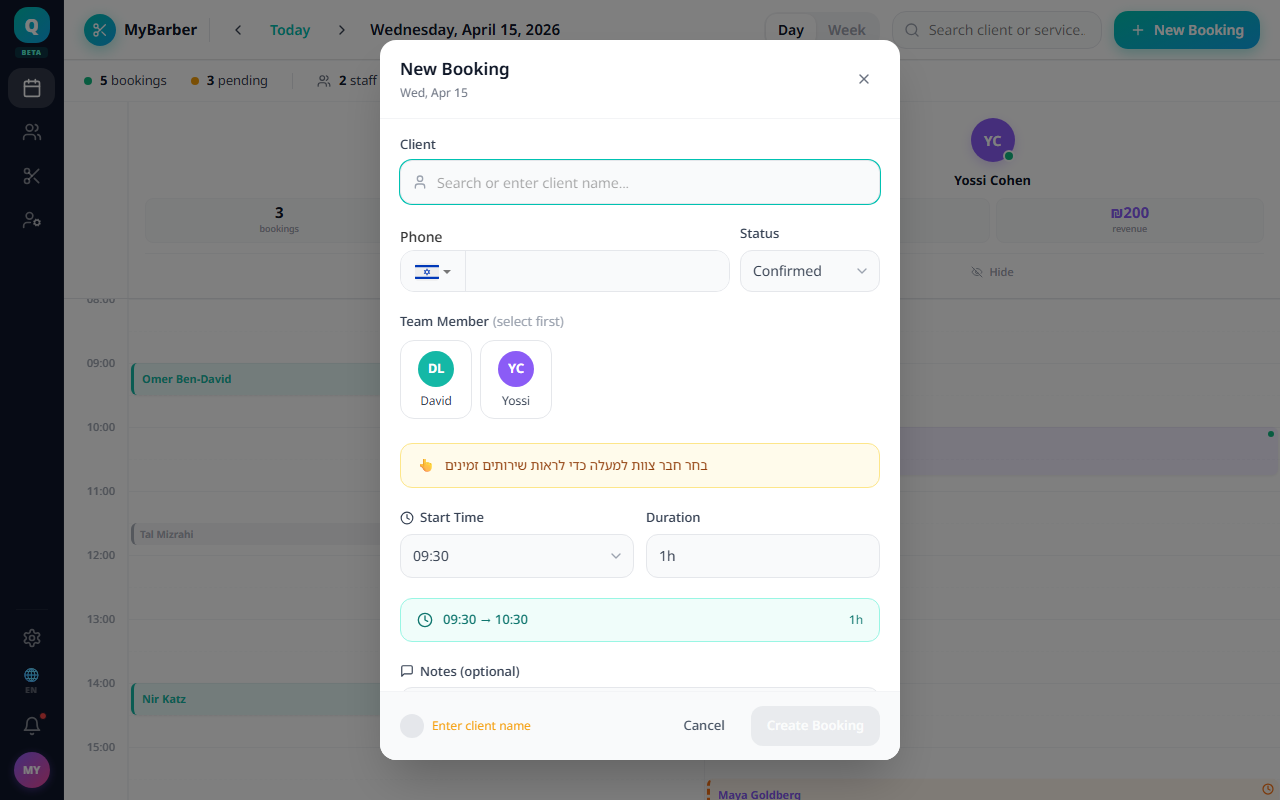
- 1Click the appointment in the calendar.
- 2Click Reschedule in the detail panel.
- 3Select the new date and time.
- 4Click Confirm.

The client receives an automatic notification with the updated time.
💡
You can also tap the date row in the appointment detail panel to quickly open the reschedule flow.
Was this article helpful?
Still need help?
support@sagarnu.co